Showing posts with label windows. Show all posts

How to open .shs files?

.shs files are scrap object files, generally created by MS Office (word, excel etc.)


If you are using Windows XP and MS Office 2003, simply drag and drop that file to MS Word / MS Excel application window.


If you are usnig Windows 7 and MS Office 2007 or later, then change the extension of .shs file to .docx and open it with MS Word. It will give you an error message and then will ask you to extract content. Click yes, and you are done.

How to connect to Internet through Nokia CDMA phones in Windows 7?

For Net connections, Nokia PC / Nokia Ovi suit isn’t working in Windows 7 for CDMA phones. Nokia had stopped support/update for their CDMA phones.

So, how would you connect to Internet through your Nokia CDMA phones?

It is assumed that you have CDMA Phone with standard Bluetooth Modem - such as Nokia 6275i

Insure that your phone's bluetooth is on, and your computer has bluetooth support, enabled.

In Windows 7, Go to control panel, click on connect to internet, and then from there, create a new connection Say, Reliance (for Reliance India Network) with

standard settings - such as "username" and "password" as your "Mobile phone number" and Dialing Number #777.

 nokia cdma connection setting

1 - Right click on Bluetooth Devices.

2 - Go to modem settings

3 - In modem tabs, you will see many modems here. Click on standard modem over Bluetooth link.

4 - Click on properties.

5 - In  new window that appears, click on Change settings.

nokia cdma windows 7 connection setting

6 - Again a new window will appear, where you will find Extra initialization command - +CGDCONT=,,"#777". Delete

this, then click OK , Apply and you are done setting part. Now, to connect to internet through your mobile,

7 – On system tray’s Bluetooth Devices, right click on your mobile phone, then click on  Dial up networking > Reliance. It will

connect to internet instantly provided you accept this connection in your Phone.

---

Run Programs without reinstalling them in Windows 7

While experimenting a little with Windows 7, I happily noticed that my most (even typical ones,) programs installed on the same machine but on different partitions on Windows XP were flawlessly running on Windows 7 too.

What you simply need is to create shortcut of preinstalled programs on you Windows 7 Desktop to run them natively – as they have installed on Windows 7.

It was not the case with earlier windows versions and you need to reinstall all the applications in each and every Windows installations separately!

Windows is learning fast – perhaps with big mistake with Vista?

How to Run KDE in Windows


KDE – the desktop environment for GNU-Linux is true cross platform set of application tools that you can install and use in nearly all top class Operating System environment – and that includes Windows OS too.

Here is no nonsense, straightforward  ‘how to guide’  for you to install KDE 4, the latest version of KDE in Windows XP / Vista / 7 (may work in other Windows versions as well):

Step 1 : Go to this link : http://windows.kde.org/ (direct download link: http://www.winkde.org/pub/kde/ports/win32/installer/kdewin-installer-gui-latest.exe )

and download the latest KDE 4 for Windows GUI installer, and run it. You need to remain connected to Internet since this is an online installer.

It will ask where to download and what to download in its initial Installation wizard , which is pretty straight forward. Please remember to use installation directory such as C:\kde4 that is easily accessible to all. And keep other default settings intact if you are unsure about them. When you are done, click Next.

image001

Step 2 : In its next step, Kde 4 Windows installer will ask you to select download server. Select the one which is close to you and has sufficient bandwidth. Then Click Next.
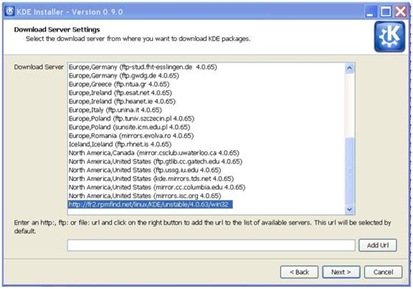
image002

Step 4 : Now you need to select the supported application to download. You can download source code of some of application / packages too. If you are unsure, click on KDE on package category and  KDE application with all dependency files will gets displayed and you can then select them individually. When done, click Next.
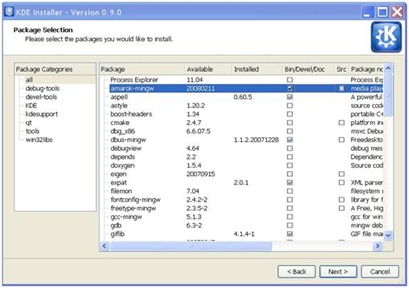
image003

Step 5 : KDE 4 Windows installer will start downloading packages from the mirror server you had selected, and will take a little time to download them that may depend upon your selection. Wait till your download completes. Meanwhile, feel free to perform other windows task till your downloads completes.

image004

Step 5 : After download, KDE 4 Windows installer installs applications and packages you had selected. If you have used 3rd party tools such as Active perl, then you need to give your input such as agree to their license term by clicking I accept button and clicking on next button.

image005

Step 6 : When installations finishes, KDE Installer tells you that now you can run your KDE application in Windows, else it will give you error message, and you need to act upon that. At times, some files may not be available during setup and you can ignore that file.

image006

Step 7 : Before you run KDE application in Windows, you need to give (presently, to fix certain things) following commands in your command window:

C:\KDE4> bin\update-mime-database C:\KDE4\share\mime


And,


C:\KDE4> bin\kbuildsycoca4 --noincremental


Note that c:\kde4 is the directory in which you have installed KDE 4 for Windows, that may be different according to your choice.


Now, you are ready to run your KDE applications in Windows. Go to Bin sub directory under KDE installation directory, and double click on the exe file of KDE program – for example, Ktuberling.exe if you want to run Ktuberling game. And voila this glossy KDE 4 game pops alive in Windows.


image007


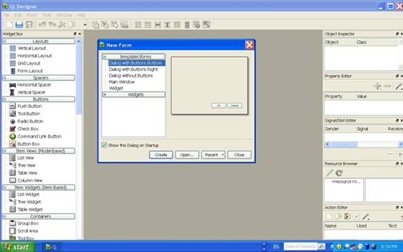
QT designer running on Windows:


image008


Ktuberling and many other KDE application  running on Windows:


image009


KDE’s Khangman with its glossy semitransparent effect running on Windows XP:
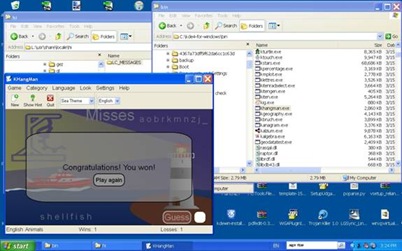


image010


KDE Kmine game in windows:


image011


To SWITCH APPLICATION’S GUI LANGUAGE, click on Help> Switch Application Language then select the language from available list (that depends upon your installed language files that you may have been selected during initial installation dialog ) and restart the application.


Here is the screenshot of multiple applications running in multiple language in Windows XP (Vista and 7 also supports)


image012


You can find latest, further information, support and guide here:


Kde 4 windows how to


http://techbase.kde.org/index.php?title=Projects/KDE_on_Windows/Installation


---

How to make your PC Hindi (say, Indic) friendly


In Windows XP (not the case with Windows Vista or Windows 7 though), Hindi (read Indic) pages and applications having Hindi GUI looks ugly. Here is how to set your pc for good looking Hindi.

chhattisgarhi on windows dolphin

(Default Hindi display)


hindi mitra blogvani

(Display after applying Hindi friendly settings)

(1) Right click on an empty space on your Desktop, and select Properties. A child window named Display Properties will open. Click on Appearence Tab and select Font SizeLarge Font, and click on Apply.

properties

(2) On Display Properties window, click on Effects button. Select Clear type on ‘Use the following method to smooth edge of screen font’dropdown option on the window that appears. Click OK. 

appearence - advanced

(3) On Display Properties Window, click on Advanced button. Click on Active Window on the Advanced Appearece Window that appears. Select Mangal (or any other Unicode Indic font if you wish so) on the Font dropdown list for each item. Select Size 12-14 (you can experiment a bit) as anything less will display Indic font too small. Click OK, then click Apply and finally, click on OK to apply new settings.

advanced - active window

Voila. Your PC is now Hindi friendly. Isn’t it ?

How to Dual / Triple boot Windows 7 with Windows XP / Linux

windows 7

Here is no-nonsense quick take to dual / triple boot Windows 7 with Windows XP and Linux.

What you need additionally : Ubuntu Linux Live (or, any Live Linux CD/DVD) CD/DVD. You can download Ubuntu Live Linux CD from here.

Assuming that you are installing Windows 7 on a separate partition in a machine that had Windows XP and Linux installed already.

If your machine had only Windows XP and no Linux, Windows 7 is generous enough to let you choose to boot older version of Windows through its boot manager.

But, it deliberately ignore other non-windows OS and file system, and hence you can’t boot Linux through Windows 7 boot manager.

In such case, you need to restore GRUB boot manager. Follow these steps carefully and restore your old GRUB:

Boot through Ubuntu Linux Live CD/DVD

Start terminal and give following command:

$ sudo grub

You will then enter in grub configuration mode. Here, give following command:

$ root (hd0,0)

Then give following command:

$ setup (hd%1,%2) - here, %1,%2 is the disk volume and partition value of your original Linux installation where /boot/grub is already installed. For example, in my machine, it is on disk 1, partition 6, so the value will be – (hd0,5). So, be careful here else your Grub will not be restored, and you will get error message instead.

Finally, give following command within grub configuration mode:

$ quit

$ exit

Now, reboot (do not forget to remove Linux Live CD/DVD to boot from HDD). If everything had gone right, your Grub boot manager will load and prompt you to choose to boot from either Linux or Windows 7. Enjoy!

Why not to use Google Chrome in your Power Savvy Laptop?

clip_image002[1]

I had previously used and tested Google chrome for its Hindi (Indic) capabilities, and had quickly abandoned since it was giving trouble here and there. Recently, after going through a report about browser share – yes, Chrome is gaining share - I tested Chrome again.

To my horror, when I opened about 8-10 tabs in Google Chrome, my laptop’s on-demand CPU cycle remain steady at 100% status and because of this, my laptop goes red-hot and its battery drained more quickly than ever. Instead of usual Two-and-half hour back-up, my laptop’s battery drained completely within an hour.

Probably, this is because, Google chrome opens a new process every time when a user opens a tab, and hence it uses your precious CPU cycle, memory and – Well, your computer’s power at an unprecedented rate.

So, beware – use Google Chrome with caution especially when you are on Battery power.

I have used Opera, Konqueror (in Linux), Firefox, Internet Explorer, Epipheny – and found that Firefox uses least CPU cycles on its heavy usage. And, if you use Opera as RSS reader, otherwise a light browser, it too become bloatware.

How Microsoft build IE 8?

As IE8 beta is all set to come out any time soon in August 2008, it is interesting to know how it is being build – or the programmers plan to build IE8. An outline can be guessed from CHAT transcript with expert team of IE8 programmers.


You can read informative as well as interesting full transcript HERE.

Scan (and clean) your Windows XP/Vista computer for viruses through a Live Linux CD

FSecure virus scanner Live Linux Rescue_CD3

You can do a lot of things through Live Linux CD – including playing Lara Craft game – oh, sorry, you are right – the game had some other silly, non sexy name.

You also can Scan and wipe out viruses off your Windows Machine (both from Fat32 as well as NTFS) through Linux Live CD equipped with F-Secure antivirus.

Download the zip file that contains iso image of the Virus Scanner Live CD from here.

The system scan remain Complete and thorough and hence you may experience it as a bit slower. But Virus cleaning is guaranteed with latest virus database from F-Secure (Need your computer be connected to internet.)

Manage your Zune through iTunes in a lot better way!

itunes

If you want to add your previously collected MP3 files that necessarily may not have MP3 tags such as Album/Artist name, then Zune is notorious enough to not let you set album/artist name, and when you copy these files to your Zune, it keeps all of them in Unknown Artists category. In case you have hundreds of MP3 files then managing them will be next to impossible.

Zune

You can use MP3 tag editors to define album/artist name to avoid this. A better way is to use iTunes. In iTunes, select as many MP3 files you want to give album name, and right click on the selection. Click on Get Info.

itunes

A window named Multiple Item Information will appear where you can fill down Album name/Artist name / Genre and click OK to save. Then copy these MP3 files to your Zune in usual way. Now you will have album names/genre/artist in your Zune – easy to manage songs now!

How to download and install phonon.dll, phonon4.dll, libphonon.dll – phonon.dll download

Many *nix applications are being now ported to Windows and when you try to run them, they display missing phonon.dll file error messages specially if the program is Multimedia kind.

Here are the files you can download :


phonon.dll

phonon4.dll

libphonon.dll

libphononexperimental.dll


Download these files and copy them in application’s directory. For example, if you are using KDE 4 Windows, then place these files in KDE4’s bin directory – where all KDE4 executables are placed.


You can try placing them in Windows system directory too.

Finally, Wine is out after maturing for 15 years

wine 1 stable release

Wine – the program that lets you run Windows Applications in Linux was finally released as Version 1 today. Wine was under rigorous development since last 15 years and had never been released as stable version.


With Wine1.0 stable release, now you can run thousands of Windows Applications directly on Linux that includes – MS Office, PhotoshopCS2, Lotus Notes, Half-Life, Command & Conquer etc.


Chances are, Wine is already available in your installed Linux distribution. All you need is to upgrade it to latest, stable version. Download wine from here.


Still, you may face occasional glitches in running Windows Applications in Linux through Wine. But, then Windows Vista don’t let you run all Windows applications either!


Three cheers for Wine.

How to delete Windows Vista Folder ?

Deleting Windows vista folder is next to impossible. You cannot delete it even in multiboot environment - while booting from other partition having other versions of Windows OS. Windows Vista folder contains whopping 8GB space and at times it becomes essential to claim this unused space. To reclaim this space, you need to reformate the partition and eventually face risks of data loss. In some cases, you need pricy third party tool. Here is free easy workaround for you.

Download and burn Knoppix 5.1.1 (or later) Linux live cd from here and boot your machine using this live CD.

Knoppix 5.1.1 Live CD will automatically detect and place icons for your computer’s all available harddisk partitions on Knoppix desktop. Right click and select read write mode to mount the partition which contains Windows Vista files that you want to delete. The partition will be mounted in read write mode.

Now double click over this partition’s icon to open it with Konqueror. Go to Windows Folder, right click on it and select delete. Some time it will ask for root privilege – in that case, open terminal and with sudo Konqueror command, run Konqueror in root user mode and then delete the Windows folder.

How to recover corrupted NTFS data through Knoppix Linux Live CD / DVD

knoppix Recently one of my PC having Windows XP failed to boot. I tried to reinstall the OS. But Windows XP installer gave the error message that C drive having NTFS partition contains undefined File system, and it needs to be formatted. The partition in question contained valuable data, and an alternate way was needed.


I tried to boot with Knoppix 5.1.1 Live CD. It was a breezy success. It showed all the partitions of hard disks on my desktop. When I tried to mount the corrupted partition (C drive in Windows), it asked me to Force mount it since the partition in question had some problem. I said yes, and voila! It worked.


I changed the attribute of other mounted harddisks NTFS partition to read-write mode (right click on partition in question and select read write attribute) and copied all my data to other, safe partition. Knoppix 5.1.1 had built in NTFS partition READ-WRITE capabilities. You can also use USB Key or Burn a CD / DVD to backup data.


After backing up my data, I reformatted the C drive and finally I was able to clean reinstall WindowsXP again.


You can download latest Knoppix Live CD / DVD image for free from HERE

Finally, Windows XP / Vista goes true Multilingual


Finally, Windows XP / Vista goes true Multilingual, the way I had always wanted.

Thanks to KDE4 port to Windows, NOW you can run your applications and programs (you can choose among 100s such from KDE4) within Window in true Multilingual style. Here is how:

Download the Latest KDE4Windows installer from here. And run it.

Select applications, program packages and LANGUAGES you want to use among many supported languages at KDE4Windows installer options.

Once the KDE4Windows installed, start KDE4 applications and click on Help. You will see “Switch Application Language” dropdown menu. Select the language you want, and click OK. Restart the application. Your application will be up and running in new language environment. You can start as many applications in as many languages as you want (only one instances of one application) and there is virtually no limitations!

(click on image to see larger picture)

The above screenshot shows running some popular KDE Games apps in Hindi, Nepali, Tamil and Panjabi languages simultaneously within Windows XP.

For detailed instructions to how to install KDE4 in Windows, refer this and this articles.

Update : New kde4windows installer can add Windows Program Menu entries, from where you can run kde 4 applications. See screenshot below. As you can see, menu appears in Localized languages (here,Hindi) too:

(click on image to see larger image)

How to split Unicode text files?


There are hundreds of File splitter and merger utility available for you to choose and use.

But only a few support Unicode. If you try to split Unicode text files through non unicode supported tool, your data may lost and all you end up collecting Garbage.

Here is a nice utility called JR Split Files that you can use to split / merge Unicode text files. The tool is tiny one, merely of 170 KB. Simply download from here, unzip it and start using. No installation required, and the interface is pretty straight forward.

You can ALSO define in how many parts (byte size) you want your files.

How to install Windows live writer in Windows XP?

Windows live writer is one of the best blog publishing tool as of now. But it had one of the worst installation tool (for XP at least) and you get many errors during installation. Here is your workaround :

(1) If you have earlier version of windows, then pl install SP2, or at least download and install latest .net framework from here. Current one is version 3.5

(2) Download and Install latest Windows installer. The latest one at the time of writing this article can be had from here

(3) Download and Install IE 7 from here

(4) Finally, Download and install Windows Live installer from here.

The download links were direct one and were working fine at the time of writing this article.

How to run KDE 4 applications in Windows XP / Windows Vista directly off CD/DVD ROM?


Run KDE 4 Desktop applications in Windows XP / Windows Vista directly off CD/DVD ROM.

Here is how:

Install kde4 for Windows in your computer as described here.

Copy entire install directory of KDE 4 and burn it on a DVD (you can use CD ROM too, if you have installed few apps. A full KDE install takes about 2.5 GB).

Now put DVD on any Windows XP / Windows Vista computer and run KDE applications directly by executing .exe files from DVD’s Kde 4 bin sub-directory under installation directory.

For example, you can double click kate.exe under bin sub-directory on CD/DVD Rom to run it.

You can copy the entire KDE 4 install directory to another Windows XP / Vista computer’s hard disk and can run kde applications without the need of cumbersome installations.

How to run KDE applications in Windows ?

Run KDE in Windows

Ktuberling and many other KDE application running on Windows:

(Click on the picture to see enlarged picture)

KDE – the desktop environment for GNU-Linux is true cross platform set of application tools that you can install and use in nearly all top class Operating System environment – that includes Windows OS.

Here is no nonsense, straightforward ‘how to guide’ for you to install KDE 4, the latest version of KDE in Windows XP (may work in other Windows versions as well):

Step 1 : Go to this link : http://download.cegit.de/kde-windows/installer/

and download the latest KDE 4 for Windows GUI installer, and run it. You need to remain connected to Internet since this is an online installer.

It will ask where to download and what to download in its initial Installation wizard , which is pretty straight forward. Please remember to use installation directory such as C:\kde4 that is easily accessible to all. And keep other default settings intact if you are unsure about them. When you are done, click Next.

Step 2 : In its next step, Kde 4 Windows installer will ask you to select download server. Select the one which is close to you and has sufficient bandwidth. Then Click Next.

Step 3 : Now you need to select the supported application to download. You can download source code of some of application / packages too. If you are unsure, click on KDE on package category and KDE application with all dependency files will gets displayed and you can then select them individually. When done, click Next.

Step 4 : KDE 4 Windows installer will start downloading packages from the mirror server you had selected, and will take a little time to download them that may depend upon your selection. Wait till your download completes. Meanwhile, feel free to perform other windows task till your downloads completes.

Step 5 : After download, KDE 4 Windows installer installs applications and packages you had selected. If you have used 3rd party tools such as Active perl, then you need to give your input such as agree to their license term by clicking I accept button and clicking on next button.

Step 6 : When installations finishes, KDE Installer tells you that now you can run your KDE application in Windows, else it will give you error message, and you need to act upon that. At times, some files may not be available during setup and you can ignore that file.

Step 7 : Before you run KDE application in Windows, you need to give (presently, to fix certain things) following commands in your command window:

C:\KDE4> bin\update-mime-database C:\KDE4\share\mime

And,

C:\KDE4> bin\kbuildsycoca4 --noincremental

Note that here, c:\kde4 is the directory in which you have installed KDE 4 for Windows, that may be different according to your choice.

Now, you are ready to run your KDE applications in Windows. Go to Bin sub directory under KDE installation directory, and double click on the exe file of KDE program – for example, Ktuberling.exe if you want to run Ktuberling game. And voila this glossy KDE 4 game pops alive in Windows.


KDE’s Khangman with its glossy semitransparent effect running on Windows XP:

(Click on the picture to see enlarged picture)

You can find latest, further information, support and guide here:

Kde 4 windows how to

http://techbase.kde.org/index.php?title=Projects/KDE_on_Windows/Installation

----------

Now give commands in Windows in complex Asian languages like Hindi, Tamil... etc.

These kinds of features were available in *nix platform (probably in Mac too) since long. Now you can use Indian Languages (Asian complex script fonts) such as Hindi, Tamil, Punjabi to give commands in your very own Windows. You can use vernacular language commands to not only open applications, but to write complex script too. With the use of Windows PowerShell's advanced features like pipes, you can write powerful scripts for your everyday computing need.

You can use these (say in Hindi) commands through Alias only. It means that there were no internal commands in other languages. For example you can set alias for notepad.exe as (set your browser View setting view>encoding>Unicode UTF-8 to view command in Hindi) नोटपैड with the help of Windows PowerShell set-alias utility like this:  –

Set-Alias नोटपैड "c:\windows\notepad.exe"

Now you can start notepad by giving  नोटपैड command in PowerShell command terminal window .

Similarly, if you give command नोटपैड मेरी फ़ाइल then Notepad will start, if मेरी फ़ाइल.txt is available, it will open it for you, else will ask you to create one for you..

You can create Alias for all your applications. For example, you can set दस्तावेज़ as alias for your MS Word program like this –

Set-Alias दस्तावेज़ "C:\Program Files (x86)\Microsoft Hindi Office\Office12\winword.exe"

Now you do not need to click open MS Word in Windows Start Menu. Simply give command  दस्तावेज़ in PowerShell command input terminal and MS Word will fire instantly..

As you can see, दस्तावेज  is not displaying correctly here. In Linux systems too, except in some graphical shell, Complex Script like Hindi are not displaying correctly in Shells.  But this does not debar you to use these languages for giving everyday computing commands.

There were detailed user manual and getting started guide for using Windows PowerShell that can be used to write complex script in one's own language. Windows PowerShell is currently available in Early Alfa, and is released free to download and use.

 Download Windows PowerShell from here 

 Download Documents and Manual for Windows PowerShell from here